Tutorial
Use this tutorial to help you start working with GridWorkbench.
Note
This tutorial is for windows machines only!
Installation
Install GWB using pip:
> pip install gridworkbench
If installation is successful, output should look like the following:
Successfully installed gridworkbench-0.0.15
Creating a GWB Object & Reading in a PowerWorld Case
The following lines of code do the following:
Import the GridWorkbench class
Create a GWB object named wb
Open a PowerWorld case
Read in the case information
from gridworkbench import GridWorkbench
fileName = r"Your Directory/Hawaii40_220906.pwb"  # PowerWorld case directory
wb = GridWorkbench(fileName)  # create GWB object, open case
wb.pwb_read_all(hush = True)    # read in case, turn off default console printout
An alternative, more explicit method to open and read in a PowerWorld case is shown below
from gridworkbench import GridWorkbench
wb = GridWorkbench()  # create GWB object
fileName = r"Your Directory/Hawaii40_220906.pwb"  # PowerWorld case directory
wb.open_pwb(fileName)  # open case
wb.pwb_read_all(hush = True)  # read in case, turn off default printout
A GWB object must be created before trying to access data from the PowerWorld case. Additionally, all data from the PowerWorld case must be accessed through the GWB object. The PowerWorld case used in these blocks of code can be downloaded here: Electric Grid Test Case Repository.
Container Objects
GWB is organized into a hierarchy of containers, and each level may contain zero, one, or multiple containers of lower level/levels. The hierarchy from highest to lowest can be seen below. GWB allows users to move up and down the hierarchy. For instance, if the user has a bus object, they can use the bus’s substation object to access its area object, which gives access to the region that the bus is in.
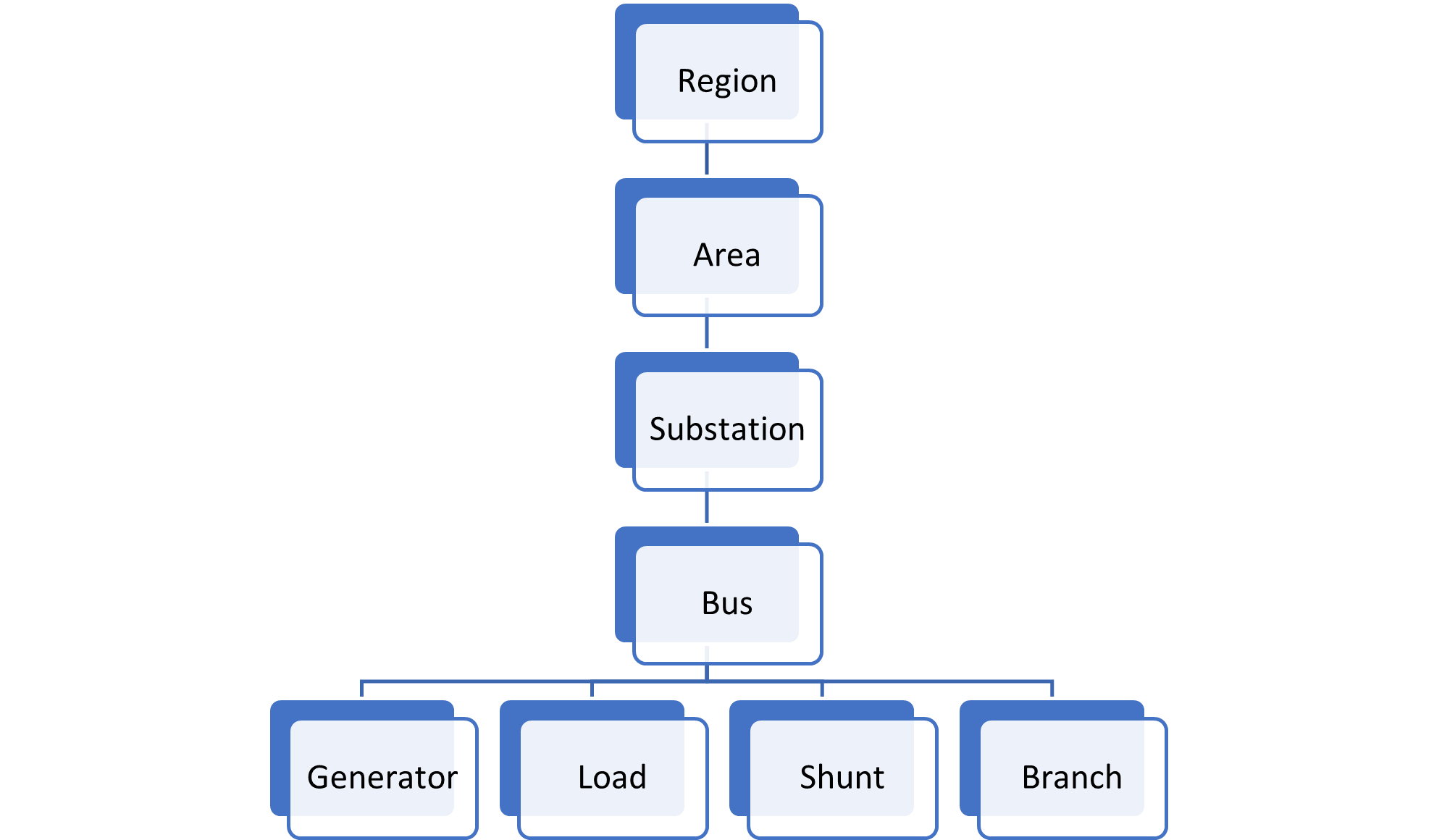
GWB Object Hierarchy
Determining Attributes of Objects
To determine the attributes of a certain object in GWB, input the object as the argument to Python’s built in dir() function. The attributes of the object are any of the strings in the list that do not start and end with a double underscore. For instance, in the output seen below, the bus object has attributes of area, branch_from, branch_to, and more. The non-attributes are usually listed first and are grouped together, then the attributes are listed together.
for bus in wb.buses:
 print("Bus attributes: ", dir(bus))
 break
Output of the code above is seen below:
Bus attributes:  ['__class__', '__delattr__', '__dict__', '__dir__', '__doc__', '__eq__', '__format__', '__ge__', '__getattribute__', '__gt__', '__hash__', '__init__', '__init_subclass__', '__le__',
'__lt__', '__module__', '__ne__', '__new__','__reduce__', '__reduce_ex__', '__repr__', '__setattr__', '__sizeof__', '__str__', '__subclasshook__', '__weakref__', '_node_map', '_number', '_sub',
'area', 'branch_from', 'branch_to', 'branches', 'branches_from', 'branches_to', 'gen', 'gens', 'load', 'loads', 'name', 'node', 'nodes', 'nominal_kv', 'number', 'region', 'shunt', 'shunts', 'status', 'sub', 'vang', 'vpu', 'wb', 'zone_number']
Region Objects
A region is a very large portion of the power system. Most grids will only have one region. Regions can be accessed by their number or iterated over using the GWB object. Check out this section in the GWB Documentation for more information.
# Access region by its number
print(wb.region(1))

# Iterate over regions
for region in wb.regions:
    print("Region # =", region.number)
Area Objects
Area objects comprise a large part of the power system, but are smaller than regions. They can be accessed by their number, through the workbench object, or a region object. Check out this section in the GWB Documentation for more information.
# Access area by number
areaObject = wb.area(1)


# Access area through GWB object
for area in wb.areas:
    print("Area name =", area.name)

# Access area through regions
for region in wb.regions:
    for area in region.areas:
        print("Area name =", area.name)
Substation Objects
Substations can be accessed by number, through their containing area, or through the workbench object. Its main attributes are buses (a list containing all the buses inside the substation), name, and number. Check out this section in the GWB Documentation for more information.
# Access substation by number
substationObject = wb.sub(2)

# Access substation by iterating through areas
for area in wb.areas:
    for sub in area.subs:
        print("Substation number =", sub.number)    # Access substation number
        print("Substation name =", sub.name)    # Access substation name

# Access substations through GWB object
for sub in wb.subs:
    print("Substation name =", sub.name)
Bus Objects
Buses represent electrical points in a power system. They can hold other grid objects, such as generators, loads, shunts, and branches. Buses can be accessed by their number, by iterating through substations, or by iterating through the GWB object. Its main attributes are name, number, nominal voltage, and their attached objects (generators, loads, shunts, and branches). Check out this section in the GWB Documentation for more information.
# Access bus by number
busObject = wb.bus(1)

# Access bus by iterating through substations
for sub in wb.subs:
    for bus in sub.buses:
        print("Bus name =", bus.name)
        print("Bus number =", bus.number)
        print("Bus nominal voltage =", bus.nominal_kv)

# Access bus by iterating through GWB object
for bus in wb.buses:
    print("Bus name =", bus.name)
Generator Objects
The most common ways to access generator objects is through their buses or through the GWB object. Their most common attributes are power, reactive power, ID, and fuel type. Check out this section in the GWB Documentation for more information.
# Access generators by iterating through buses
for bus in wb.buses:
    for gen in bus.gens:
        print("Generator power =", gen.p)   # Access real power
        print("Generator reactive power =", gen.q) # Access reactive power
        print("Generator ID =", gen.id)  # Access ID
        print("Generator fuel type =", gen.fuel_type)   # Access fuel type

# Access generators through GWB object
for gen in wb.gens:
    print("Generator power =", gen.p)   # Access real power
Load Objects
The most common ways to access load objects is through their buses or through the GWB object. The main load attributes are real power, reactive power, id, and status (returns a Boolean indicating whether or not the load is open or closed: True if load is closed, False if open). Check out this section in the GWB Documentation for more information.
# Access loads by iterating through buses
for bus in wb.buses:
    for load in bus.loads:
        print("Load power", load.p)    # Access real power
        print("Load reactive power", load.q)  # Access reactive power
        print("Load ID =", load.id)  # Access load ID
        print("Load status =", load.status)  # Access load status

# Access loads through GWB object
for load in wb.loads:
    print("Load power =", load.p)   # Access real power
Shunt Objects
Shunt objects can be accessed through their buses or through the GWB object. The attributes of shunts can be determined by using the dir() function. Check out this section in the GWB Documentation for more information.
# Access shunts through GWB object
for shunt in wb.shunts:
    print("Shunt reactive power =", shunt.q)    # Access reactive power
Branch Objects
Branch objects can represent two-node objects such as transmission lines and transformers. Most branch objects will be transmission lines and some will be transformers. It is possible to access branches from any container, but it is most useful to access them from their buses since two buses are connected by a branch. Branches can also be accessed through the GWB object. Their most commonly used attributes are susceptance, conductance, power ratings, resistance, inductance, from bus, to bus, and branch_device_type. Check out this section in the GWB Documentation for more information.
# Access branches by iterating through buses
for bus in wb.buses:
    for branch in bus.branches:
        print("Branch susceptance =", branch.B) # Access branch susceptance

# Access branches through GWB object
for branch in wb.branches:
    print("Branch Rating A =", branch.MVA_Limit_A)
Using Easy Sim Auto (ESA) in GWB
ESA can be accessed using GWB through the attribute “esa” in the GWB class. See ESA’s documentation for a list of the most commonly used functions here: Easy Sim Auto.
Although the above documentation covers many commonly used functions, there may still be some functions that need to be used that are not listed in the documentation. To use non-default ESA functions, use ESA’s RunScriptCommand() function to access the desired function in PowerWorld. Other PowerWorld commands can be found here: PowerWorld Auxiliary File Format.
Using GWB Without SimAuto or ESA - Using aux Files
If you don’t have SimAuto installed, you can still use GWB, but it must be done using aux files. To access data in PowerWorld (such as bus data), open the model explorer and save the desired data as an aux file.
The following example shows how to read in bus data from an aux file for bus data.
from gridworkbench import GridWorkbench
wb = GridWorkbench()
directory = r"directory to aux file.AUX"
wb.import_aux(directory)

for bus in wb.buses:
print(bus.name)
Bus information is retrieved just like it was done when SimAuto was installed.
If changes are made to the case, you can save them in a new aux file, which is shown in the following lines of code:
export_path =  r"new directory.AUX"
wb.export_aux(export_path)
Other objects can be read in and accessed in a similar manner-just download their aux files, and read them in.